
Features
Each step an expense or a cash advance goes through, who does it, and the screen they do it on.
Request a demoThe screens on this page come from BORDExpense. The people, the company and the amounts in them are made up.
Expenses and receipts
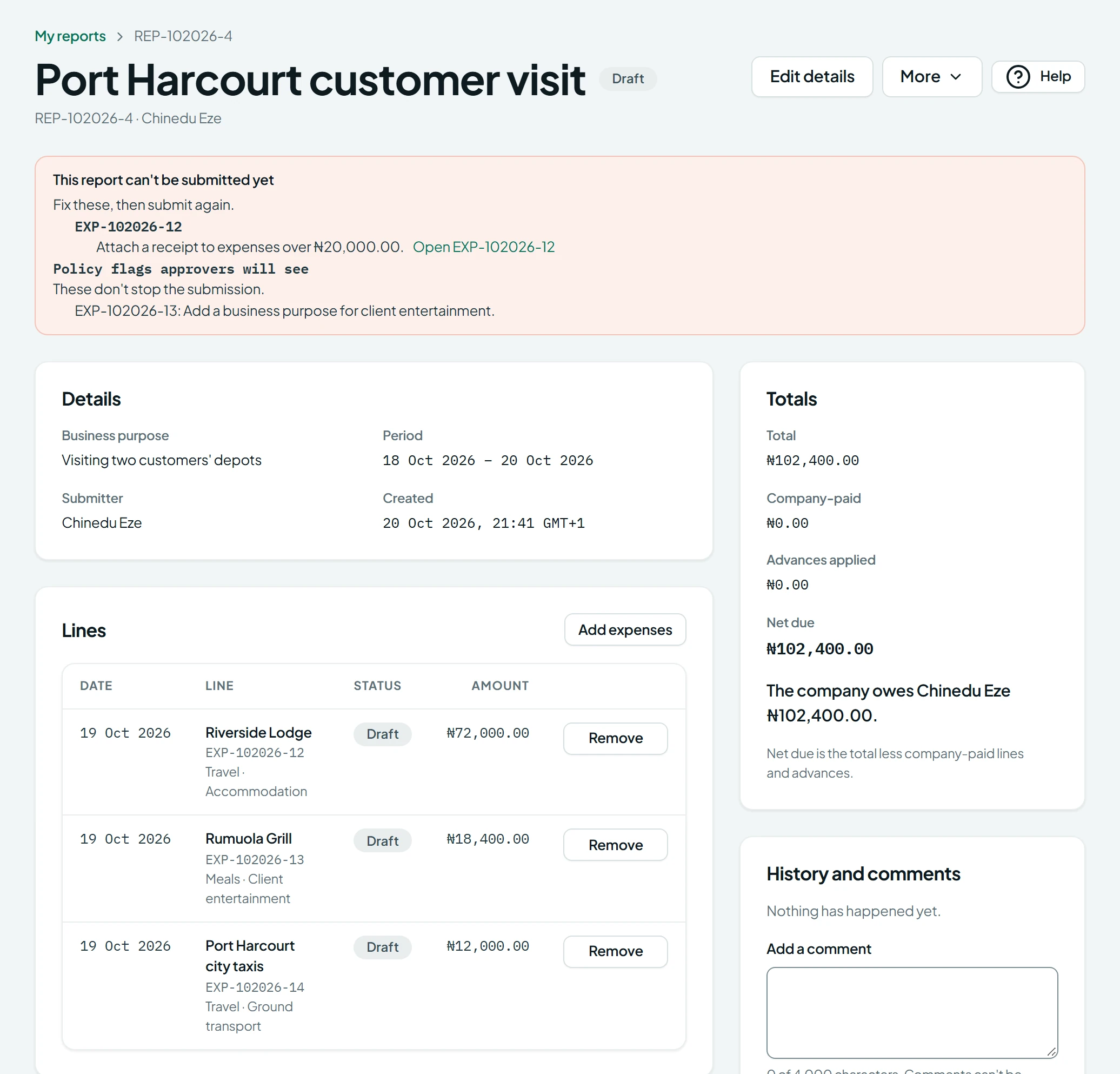
Your spending rules run when an employee submits a report, while they still have the receipt to hand.
- Record each expense with its date, merchant, amount, category and business purpose, and attach receipts as JPG, PNG or PDF files.
- Group expenses into an expense report.
- Set the rules your policy needs: a receipt above an amount, a ceiling per expense, a business purpose, a limit on how old an expense can be, and a check for the same merchant, date and amount twice on one report.
- A rule can stop a report until it's fixed, or flag the line for the approver to see. The employee is told what to fix, with a link to the expense.
- Employees see only their own records.
Approvals
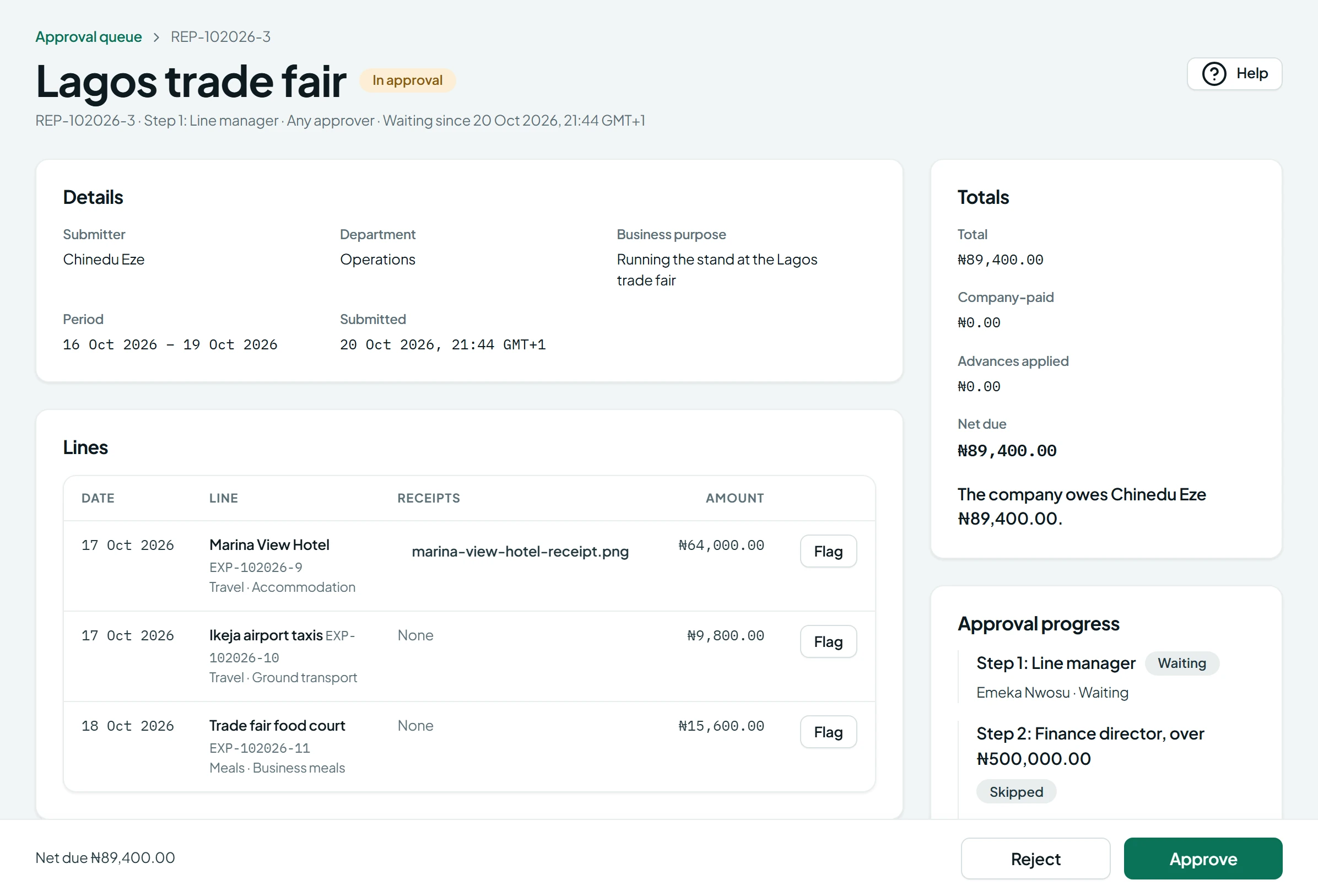
You decide who approves what. Approval limits are checked when a report is submitted, so a report never gets stuck with someone who can't approve it.
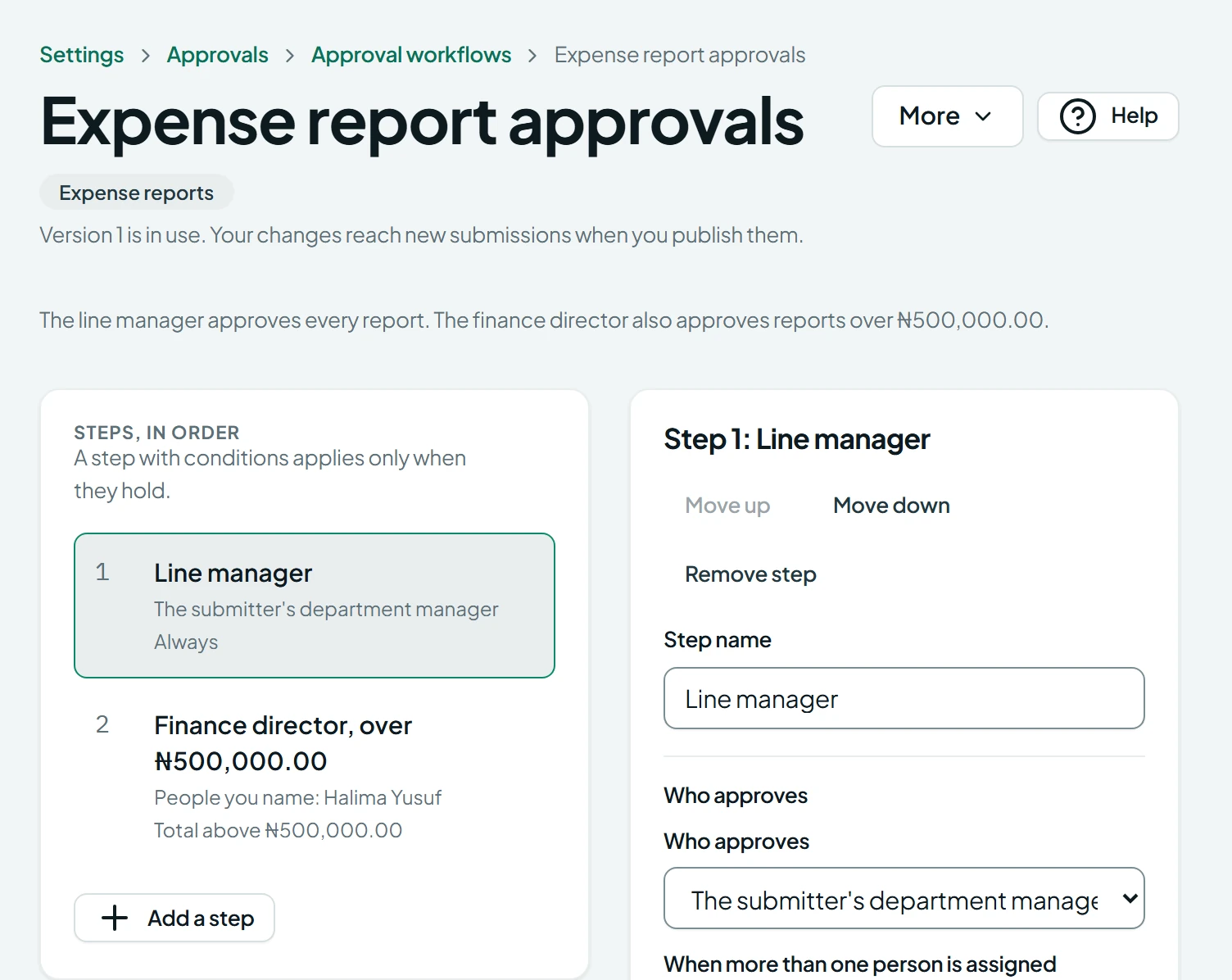
- Set the approval steps for expense reports and for cash advances. A step can go to the submitter's department manager, to named people or to everyone in a role, and can apply only when its conditions hold, such as a total above an amount.
- Give each approver an approval limit. A report above it can't be submitted to them, and the employee is told why.
- Approvers get one list of everything waiting for them. Each item opens on one page, with its lines and their receipts, the totals and the approval steps.
- Approve or reject from the same page. A rejection says why.
- When an approver is away, an administrator can hand their work to someone else.
Cash advances, until they're retired
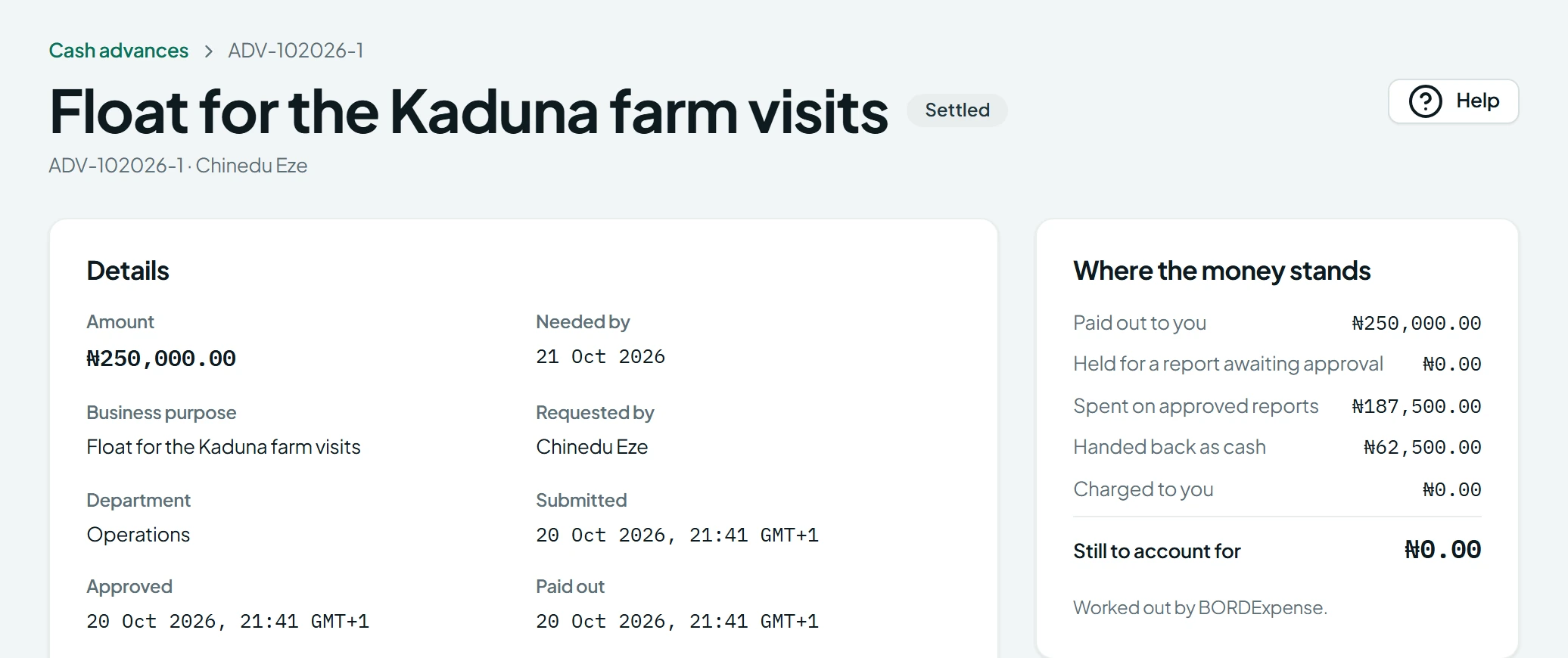
An advance stays open, with its balance on screen, until every part of it is accounted for.
- An employee asks for a cash advance, and an approver approves it. Finance records the pay-out.
- The employee retires the advance on an expense report, and the approved expenses are set against it.
- Finance records any cash handed back, with your receipt reference.
- Each advance shows where the money stands, from the amount paid out to what's still to account for.
- Your organisation can set how many days employees have to retire an advance. After that, Finance can charge what's left to the employee, and the employee can't ask for a new advance until the old one is settled.
Posting to your accounts
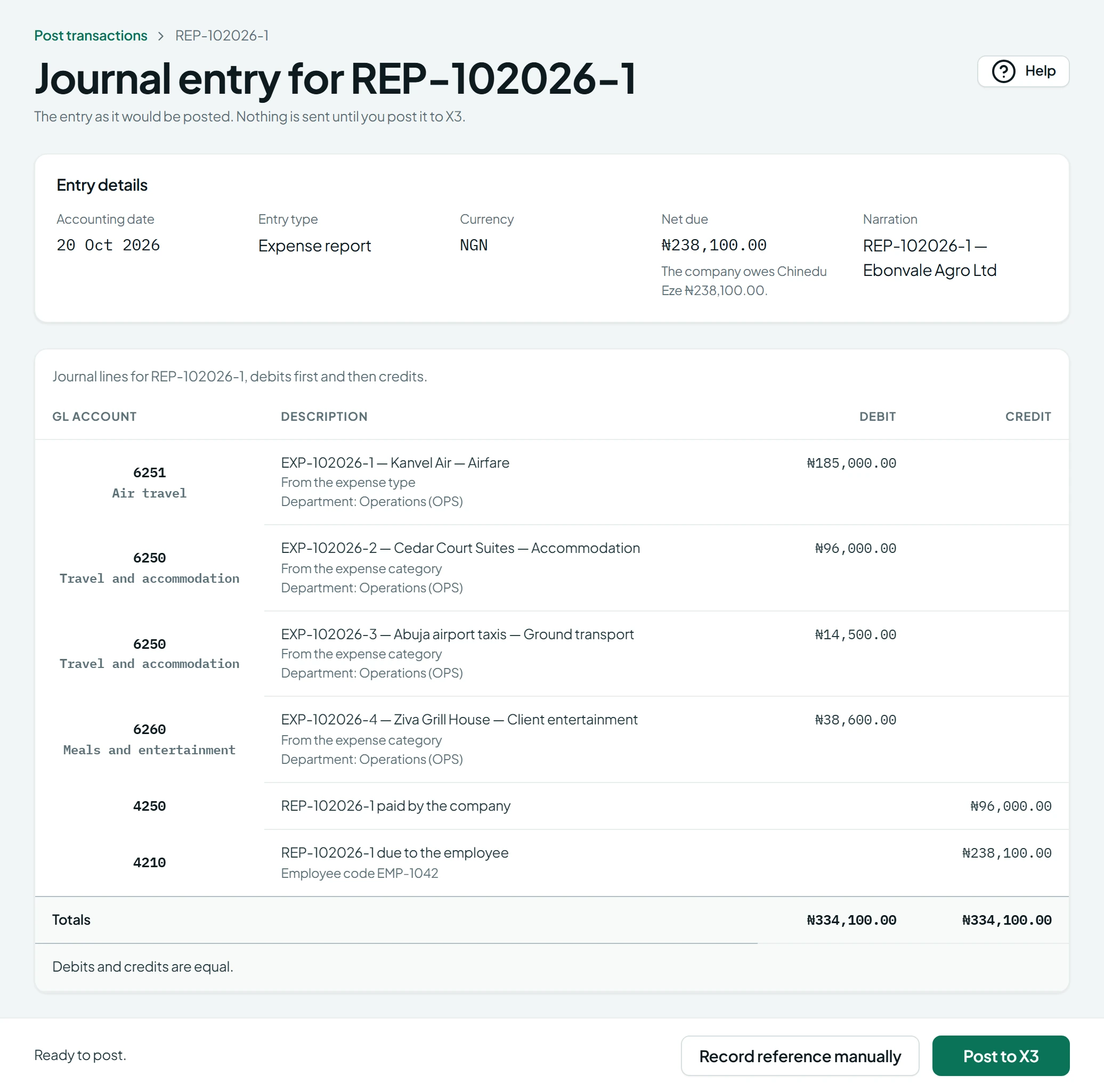
Finance sees the journal for every report and advance before anything is posted.
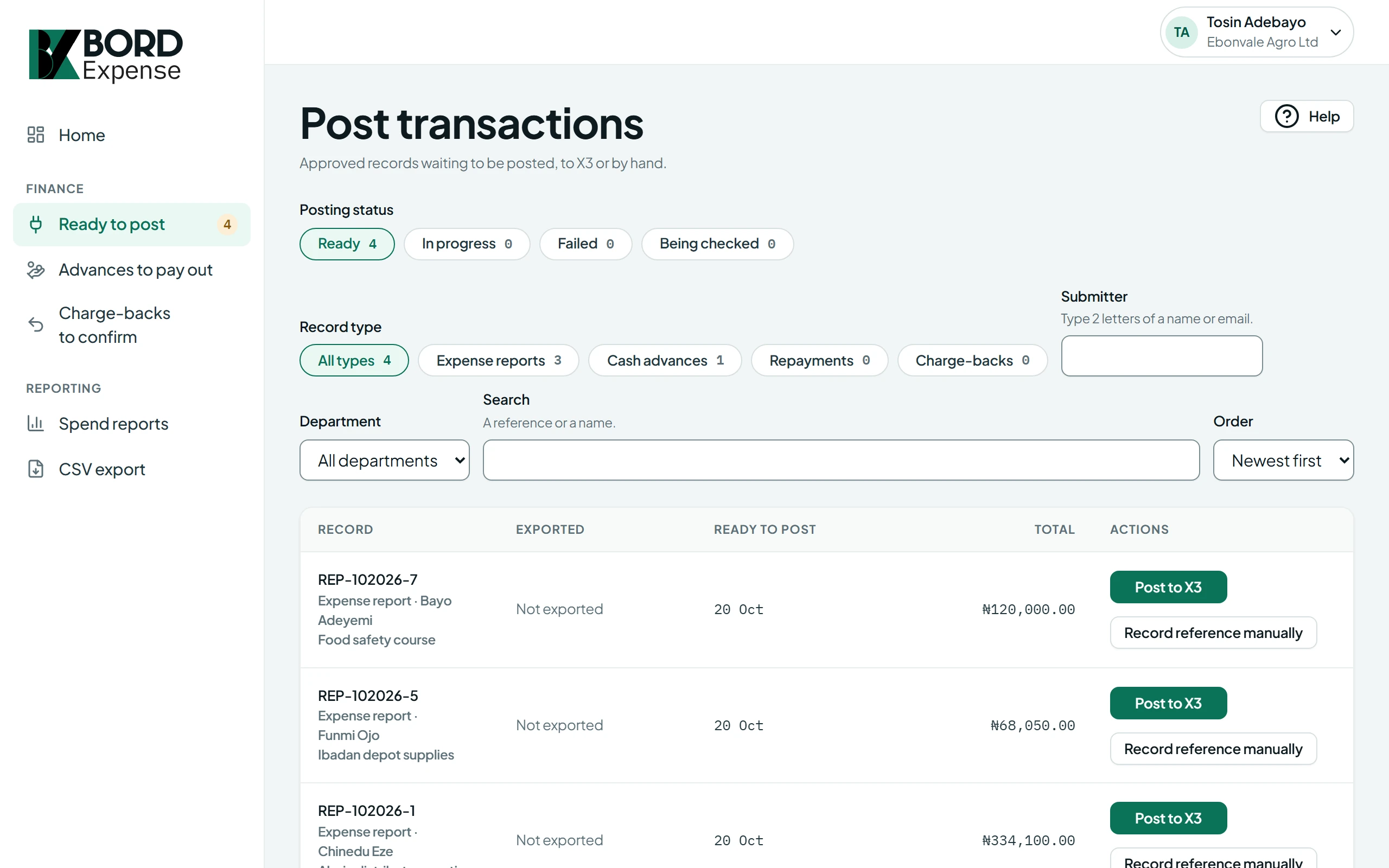
- One list of everything ready to post, approved expense reports and cash advances included.
- The journal shows the GL account for each line, the debits and the credits, and what the company owes the employee.
- Finance sees each expense line's analytical dimensions, such as cost centre or project, and can change them before posting, one line at a time or with "Apply to all lines". A line missing a required value can't be posted until Finance fills it in.
- For a cash advance or a repayment, Finance chooses which of your bank accounts the journal uses.
- Post by hand. Finance marks the record as posted and records the reference from your accounting system.
- Or download approved records as a CSV file for your accounting system, with a row for each expense line and a column for each dimension type.
- Organisations on the Premium plan post straight to Sage X3 from the same page.
Premium
Sage X3 integration
Available with Premium, for organisations that run Sage X3. Finance posts from the same list, the journal arrives in Sage X3, and our team sets up the connection.
- Post approved expense reports and cash advances to Sage X3 from the posting list. The Sage X3 reference is kept with the record.
- An advance's Sage X3 reference shows again on the expense report that retires it, so the two entries can be matched.
- Each expense line posts with the analytical dimensions your Sage X3 expense accounts track, such as cost centre or project. A value comes from the line's department or cost centre, a fixed value, or the employee's ERP code.
- If sending fails, retry it. A retry never creates a duplicate entry. Or change the dimension values and post again with changes.
- Our team sets up the connection for each customer, and configures and tests the analytical dimensions your Sage X3 expense accounts track. We test it all with you before your first posting.
- Talk to us about your version of Sage X3.
Control and visibility
Administrators set up the organisation and its rules. Every change anyone makes after that is in the audit trail.
- Roles for employees, approvers, Finance, Finance managers and administrators. One person can hold more than one.
- Finance managers see everything Finance sees, without being able to post or record a pay-out.
- Administrators set up departments, people, approval limits, approval steps, spending rules and expense categories.
- Search the audit trail of every change. No one can edit it.
- Finance downloads reports as CSV files, including outstanding advances, reports waiting for approval by age, and everything posted in a period.
Made for African finance teams
Amounts are in your organisation's currency, and the screens use the words your finance team uses.
- Every amount shows in your organisation's currency, as the naira amounts on this page do.
- Employees retire an advance, and Finance posts an accounting entry.
Walk through it with our team
Tell us how approvals and cash advances work in your organisation today, and we'll arrange a demo.